Enroll in Microsoft Authenticator
Downloading the App
In the App Store or Google Play store, download the Microsoft Authenticator app.
See Microsoft's official documentation for more information: Download Microsoft Authenticator | Microsoft Support
Beware - There are multiple apps with similar names and icons. Make sure you download the Microsoft Authenticator app published by Microsoft.
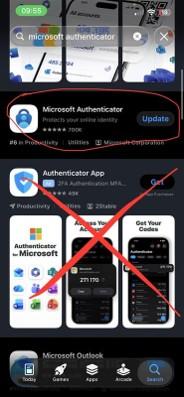
Beware of imposter apps
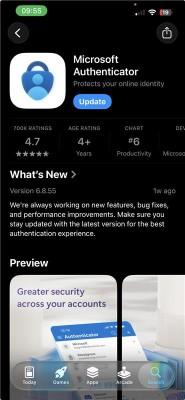
Correct Microsoft Authenticator app
Enrolling with a Computer
- In an incognito/private browser, go to https://myaccount.microsoft.com.
- Enter your username email (abc123@calvin.edu) and passphrase.
You will be shown the following screen. Click Next.
Image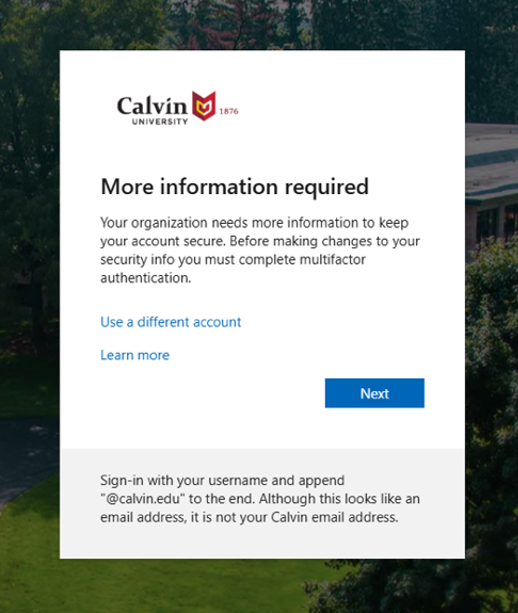
You will be asked to set up Microsoft Authenticator. You can download Authenticator from the App Store or Google Play Store for mobile devices.
Image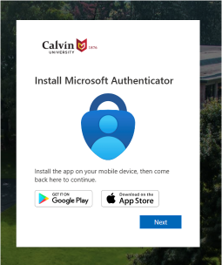
Open the Microsoft Authenticator app. You will be prompted to allow notifications and access to your camera. Notifications are necessary to approve MFA requests, and the camera is only used to scan the enrollment QR code.
Image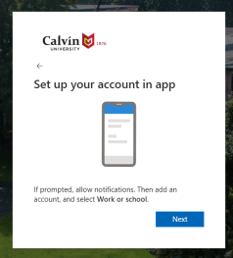
Scan the QR code provided in the MFA setup screen.
Image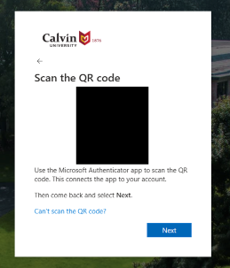
- After scanning the QR code, you should see a new account listed as "Calvin University" with your email address.
You will be asked to approve authentication using a two-digit number.
Image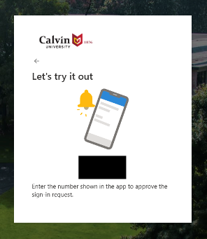
After approving the number, you will be shown a confirmation screen.
Image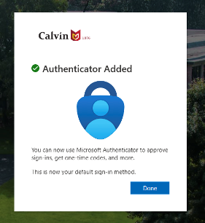
- Microsoft Authenticator will become the default method for MFA. You may be prompted several times after initial setup to pass MFA for various services (Outlook, Teams, etc.)
- Clear cache and cookies in any browsers you use for daily operations and login to Microsoft products again to avoid authentication issues moving forward.
Enrolling with a Mobile (only)
- Ensure the Microsoft Authenticator app is installed on your mobile device.
- Open any Microsoft app (such as Outlook or Teams) and select Sign In.
- If you do not have a Microsoft app installed, go to My Account in a web browser.
- Sign in using your Calvin email address and passphrase.
Select Next.
Image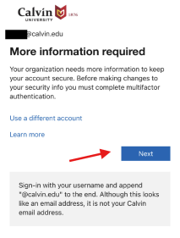
Select Next again when prompted to set up Microsoft Authenticator.
Image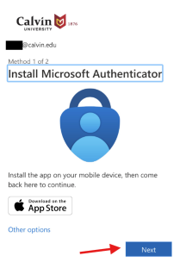
Select Pair your account to the app by clicking this link.
Image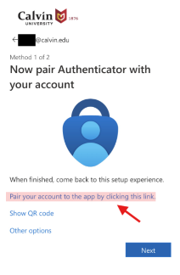
The Microsoft Authenticator app will open and display a message stating Account added successfully.
Image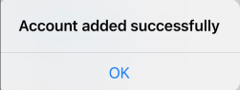
- Return to the Microsoft app or web browser to continue the setup process.
Select Next to complete enrollment.
Image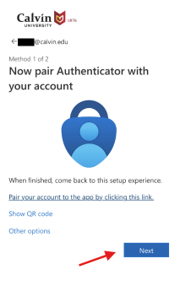
- Your Microsoft Authenticator enrollment is now complete. You can begin using Microsoft Authenticator for sign-in verification.
Notes
- Users can manage their configured MFA methods and devices at: https://mysignins.microsoft.com/security-info.
- If you linked your Exchange account (Calvin email) to the Apple Mail app, you will need to reauthenticate by doing the following:
- Go to Settings > Apps > Mail > Mail Accounts and select the account labeled Exchange. If you don't see an account named Exchange, you may have given it a custom name. Open each account until you find the correct one ending with calvin.edu.
- Once you locate the account, you should see a Re-enter Password prompt. Enter your Calvin passphrase and complete the sign-in process, including approving the authenticator request in Microsoft Authenticator.
Get started: understanding MFA
Passwords are becoming increasingly easy to compromise. They can often be stolen, guessed, and hacked—you might not even know who else has your password and is accessing your account. MFA adds a second layer of security to your account to make sure that it stays safe by using your phone or other device to verify your identity.
How it works:
- Enter your Calvin username and password as usual
- Use your phone to verify your identity
- Securely logged in
Calvin strongly recommends that you use the Microsoft Authenticator app. Text messaging and phone call options are not available. The Microsoft Authenticator app is the primary method for safeguarding your information and identity.
If you do not have a cell phone, or if your phone's mobile operating system is too old to support Microsoft Authenticator, you may request a hardware token from the HelpDesk. The cost of the hardware token will be charged to your department.
No, faculty, staff, and students are required to use MFA, except for dually enrolled high school students in jurisdictions that prohibit students from accessing their mobile devices during class periods.
MFA is associated with your account and not with your status at Calvin University. If you have access to your Calvin account you are still required to use MFA.
Retirees who receive compensation or benefits from Calvin, have access to student data, and/or are otherwise an active members of the Calvin community (such as faculty emeritus) are required to use MFA to access those services online.
No., Calvin verifies your password with its own systems and does not send your password to Microsoft Authenticator. Authenticator provides only the second factor—the “something you have"—used to verify your identity.
Troubleshoot: Help with MFA
You will have many chances to authenticate a request. After you have exceeded the number of chances, your multifactor authentication will be deactivated, and you will not be able to access the system you are attempting to log into. Email the HelpDesk for further assistance.
Deny the request and report the incident to the HelpDesk immediately via email or by calling (616) 526-8555.
Your account will lock when there are too many failed attempts to authenticate. The lock out time is set to 60 minutes and then your account will reset back to active status for you to log in. If you need assistance or wish to have your account immediately unlocked, please email the HelpDesk at (616) 526-8555.
Yes, Microsoft Authenticator can be used while traveling internationally as long as your device has an internet connection through Wi-Fi or cellular data. You do not need international calling or SMS service to approve an authentication request through the Microsoft Authenticator app.
If you purchase a new phone or use a new SIM card while traveling, you will need to make sure Microsoft Authenticator is set up on your new device before you can use if for multifactor authentication.
MFA on my phone
You may have trouble receiving push notifications if there are network issues between your phone and our service. Turning the phone to airplane mode and then back to normal operating mode often resolves these sorts of issues, if there is a reliable internet connection available. You can also turn off the Wi-Fi connection on your device and use the cellular data connection instead.
Yes, however the "Call Me" feature is limited to most phones with US and Canada area codes. Duo push notifications and passcodes on smartphones will still work as normal, even if that phone has an international number and enrolled in Duo.
No, you will be required to obtain a hardware token from the HelpDesk. The cost of the hardware token will be charged to your department.
Even if you have no access to wifi or cellular service, you can still use the Duo Mobile app. By clicking on Calvin University in the Duo Mobile app you will see a unique, rotating 6-digit code that you can supply during authentication.
CIT strongly recommends that you enroll two devices with MFA in case your primary device becomes unavailable.
If none of your devices are available, contact the HelpDesk. After your identity has been verified, the HelpDesk can provide a temporary bypass code. Temporary bypass codes can only be issued after identity verification.